Connect your Adyen account
Copy your API key, client key and merchant account from Adyen into the app settings in Swell.
1. Open the Adyen settings in Swell
After installing the app, go to Settings → Payments in your Swell dashboard. Under Alternative methods, find Adyen and select Settings.
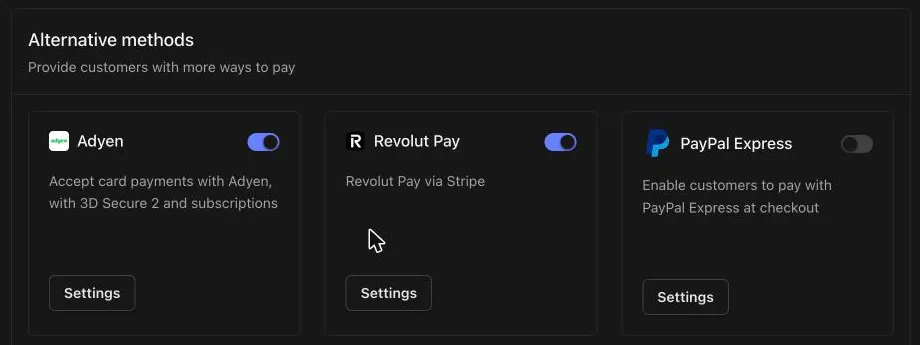
2. Copy your API key from Adyen
In the Adyen Customer Area, go to Developers → API credentials and open your web service credential (named like ws_123456@Company.YourCompany). If you don’t have one, select Create credential and choose Web service user.
Under Server settings → Authentication → API key, select Generate API key and copy the key.
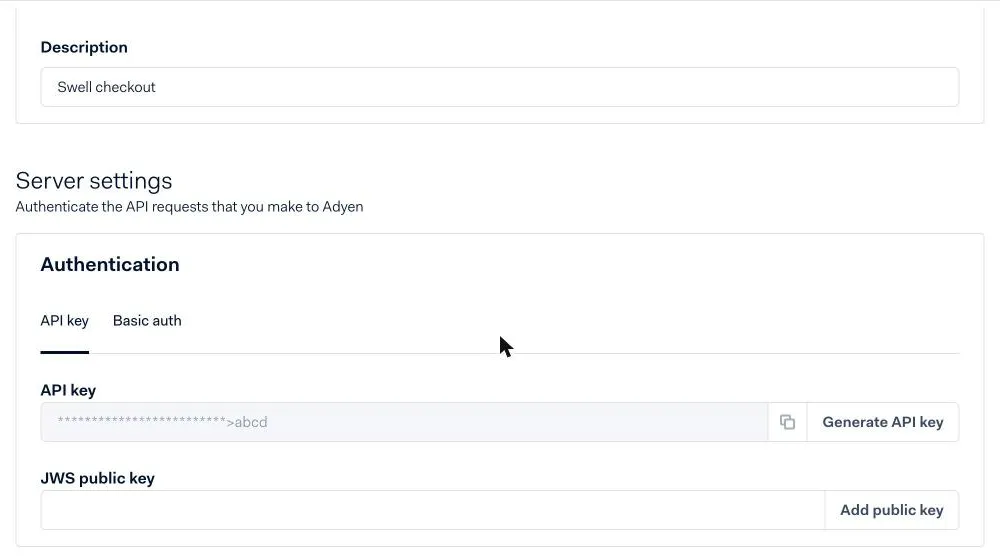
3. Copy your client key
On the same credential page, scroll to Client settings. Copy the Client key. It starts with test_ in the test environment and live_ in live. You’ll also use this section in the next step to add the allowed origin.
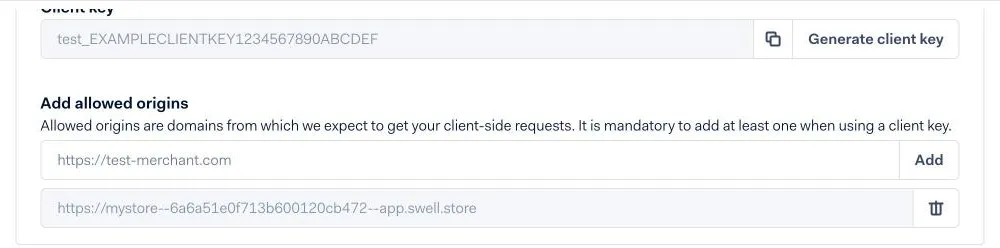
Select Save changes at the bottom of the credential page if you generated a new key.
4. Fill in the app settings
Back in Swell, fill in the Adyen settings dialog:
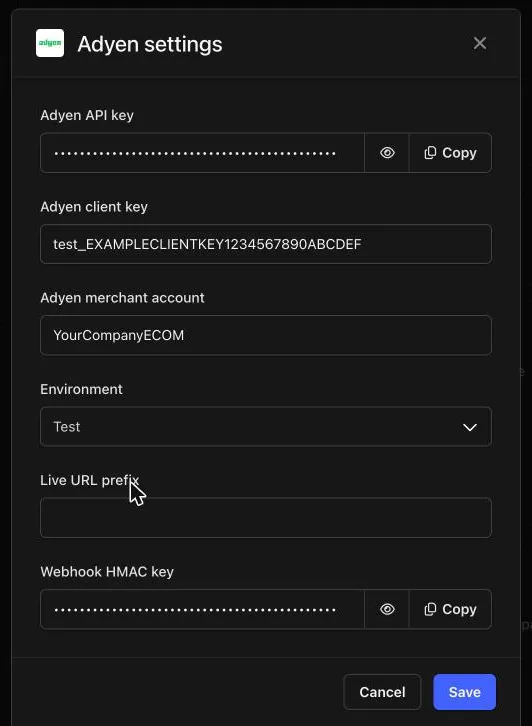
| Setting | What to enter |
|---|---|
| Adyen API key | The API key from step 2. |
| Adyen client key | The client key from step 3. |
| Adyen merchant account | Your merchant account name, for example YourCompanyECOM. Use the merchant account, not the company account. |
| Environment | Test while you set up. Switch to Live only when you go live. |
| Live URL prefix | Leave empty for Test. Required for Live. See Going live. |
| Webhook HMAC key | Leave empty for now. You’ll fill it in when you set up the webhook. |
Select Save.